

Git for Your First Release: stage and production Branches, from Empty Repository to Live
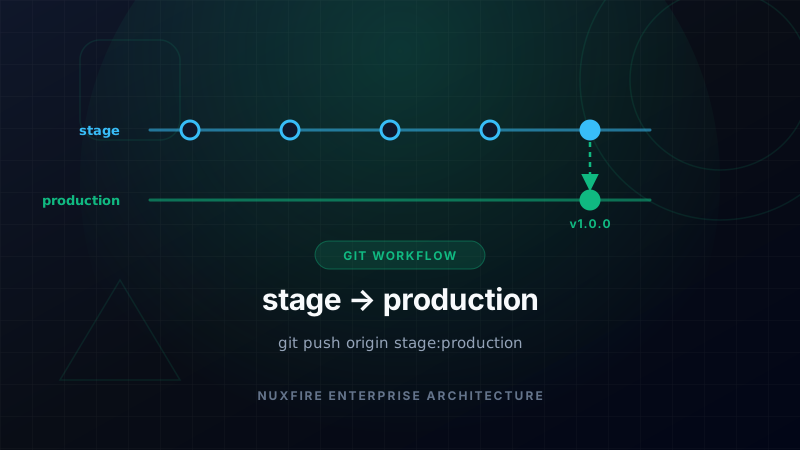
You extracted the Nuxfire source and you are about to deploy your first product. Before you run a single sst command, spend twenty minutes on the thing that decides whether the next hundred deploys are boring or stressful: how your Git branches map to what is live.
This manual builds a small, strict model. Every Git command in it was run end to end in a scratch repository before publishing; the GitHub CLI flags come from its official manual. Each step has the manual commands and a short prompt you can paste into an AI agent in your IDE (Cursor, Claude Code, Copilot and similar).
The model in one minute
feature/x ──▶ stage ──(validated)──▶ production
              default branch          moves ONLY by fast-forward
              you work here           = what you approved for live
Two long-lived branches, five rules:
- All work happens on
stage. It is the default branch, so pull requests and clones land there. productiononly moves by fast-forward fromstage. No merge commits, no direct commits.- Never force-push
production. If a push is rejected, that is the safety net working. - Deploy production from the
productionbranch. A deploy ships whatever is checked out on your machine, so the branch you are on is the truth. - Tag every release that went live (
v1.0.0). The branch says "approved", the tag says "confirmed live".
Why not keep main too? A third long-lived branch is a third answer to "what is the latest code?". Nuxfire already names its deployment stages stage and production, so the branch names mirror them and there is nothing to translate in your head.
What you need
- Git 2.28 or newer (for
git init -b). Check withgit --version. - A GitHub account (personal or organization). The GitHub CLI (
gh) is optional; every step also shows the web-UI path. - The Nuxfire folder extracted and
bun installdone, as in Installation.
Step 1: tell Git who you are
git --version
git config --global user.name "Your Name"
git config --global user.email "you@example.com"
git config --global init.defaultBranch stage
The last line makes every new repository you create start on stage instead of master or main.
Prompt for AI agents:
Check `git --version` (2.28 or newer is required). Show my global git
user.name and user.email. If either is empty, ask me for the values
before setting them. Do not change anything else.
Step 2: protect your secrets, then make the first commit
Your folder already contains files that must never reach Git: .env.production and .env.stage hold real credentials (the deploy preflight even checks that the database values are filled in), and .sst is local deploy state. Nuxfire's .gitignore covers them:
.env
.env.*
!.env.example
.sst
Create the repository on stage, prove the rules work, and only then stage everything:
git init -b stage
git check-ignore -v .env.production .env.stage .sst
git add -A
git diff --cached --name-only | grep -E "(^|/)\.env"
The check-ignore command must print the rule that matches each file. The last command must print only .env.example. If any other .env* file shows up, stop and fix .gitignore before committing.
git commit -m "chore: initial commit from Nuxfire"
If a secret ever gets committed, deleting the file is not enough: it stays in history. Treat the credential as compromised, rotate it first, then clean the history.
Prompt for AI agents:
In the project root, run `git init -b stage` only if there is no .git
folder. With `git check-ignore -v`, verify that .env.production,
.env.stage and .sst are ignored and that .env.example is not. Run
`git add -A` and print `git diff --cached --name-only`. STOP and warn me
if any .env* file other than .env.example is listed. If it is clean,
commit with the message "chore: initial commit from Nuxfire".
Step 3: create the GitHub repository and push stage
Create a private, empty repository: no README, no .gitignore, no license. In the browser, use New repository, choose Private and leave the initialization options unchecked. Or with the CLI, from the project folder:
gh repo create my-product --private --source=. --remote=origin
The CLI adds the origin remote for you. Without it, add the remote yourself, using the URL GitHub shows you:
git remote add origin git@github.com:YOUR-USER/my-product.git
In both cases, publish stage and set it to track the remote:
git push -u origin stage
Prompt for AI agents:
Create a PRIVATE, empty GitHub repository named <name> under <owner>
(no README, no .gitignore, no license), add it as `origin`, and push the
`stage` branch with upstream tracking. Use `gh` if it is installed;
otherwise print the exact commands for me to run. Never use --force.
Step 4: create production
Branch it from stage at the same commit, publish it, and go back:
git switch -c production
git push -u origin production
git switch stage
Now add a local guard so that production can only ever fast-forward. Git will refuse any merge that is not a fast-forward:
git config branch.production.mergeOptions --ff-only
Prompt for AI agents:
Create branch `production` from `stage`, push it with upstream tracking,
switch back to `stage`, then run
`git config branch.production.mergeOptions --ff-only`.
Confirm the result with `git branch -vv`.
Step 5: make stage the default branch and remove main
GitHub decides the default branch, not your local Git. Even in an empty repository the default may stay main, so check it explicitly. GitHub requires more than one branch to change the default, which is why production had to exist first.
In the browser: Settings → Branches → Default branch, click the switch icon, pick stage, Update, and confirm. With the CLI:
gh repo edit --default-branch stage
Then look at what exists on the remote and, if main is there (for example because the repository was created with a README), delete it. Do it after switching the default, never before:
git ls-remote --heads origin
git push origin --delete main
Finally refresh your local pointer to the remote default:
git remote set-head origin --auto
If main was created with a README it has an unrelated history. Do not merge it into stage; just delete it.
Prompt for AI agents:
Check which branch is the GitHub default with
`gh repo view --json defaultBranchRef`. If it is not `stage`, run
`gh repo edit --default-branch stage`. Then run
`git ls-remote --heads origin`. If `main` exists, tell me and WAIT for my
confirmation before running `git push origin --delete main`. Finish with
`git remote set-head origin --auto`.
Step 6: guard rails on GitHub (if your plan has them)
The local --ff-only guard costs nothing and needs no plan. On GitHub, branch protection and rulesets depend on your plan and on the repository visibility (rulesets are documented for GitHub Team and GitHub Enterprise). If yours offers them, protect production with: block force pushes and restrict deletions. If not, the process and the local guard are enough as long as you never force-push.
Step 7: the day-to-day loop
Working alone, commit to stage and push:
git switch stage
git add -A
git commit -m "feat: describe the change"
git push
Working with others, use short-lived branches and pull requests into stage:
git switch -c feat/billing-copy
git push -u origin feat/billing-copy
Use Conventional Commits (feat:, fix:, docs:, chore:). Nuxfire's own history follows them, which keeps release notes almost free.
Step 8: the gate before your first release
Nothing reaches production until it passes the same checks every time:
bun install
bun run test
bun run doctor -- --stage production
doctor is the deploy preflight: it validates your Cloudflare token, your BRAND_* values, your database secrets and the domain zone, and tells you the exact fix for each problem before you spend minutes on a failing deploy.
For a first product, deploy a validation stage before production. A non-production stage gets its own Workers, database connection and secrets, and answers on <stage>.dev.<your-domain>:
bun run deploy -- --stage stage
The -- is required for the flag to reach the script. Secrets and the Cloudflare token are covered in Cloudflare Access, Secrets and Deploy. One production-only prerequisite is worth knowing now: the apex domain and www must have no A, AAAA or CNAME record in your DNS, otherwise Cloudflare rejects the custom domain (error 100117).
Prompt for AI agents:
Run `bun install`, `bun run test` and
`bun run doctor -- --stage production`. Report every failure with its
exact message and the fix. Do NOT deploy anything.
Step 9: the first release
Everything is green on stage. Promote it:
git status
git push origin stage
git status must say the working tree is clean. Now fast-forward production to the exact same commit, without leaving stage:
git push origin stage:production
That push only succeeds if it is a pure fast-forward. Verify both branches are identical, then switch to production, because that is the branch you deploy from:
git fetch origin
git diff --stat stage origin/production
git switch production
git pull --ff-only
The diff must print nothing. Run the preflight once more and deploy:
bun run doctor -- --stage production
bun run deploy -- --stage production
Only after the deploy succeeds, tag the release and go back to work:
git tag -a v1.0.0 -m "First production release"
git push origin v1.0.0
git switch stage
If the deploy fails, do not edit production. Fix forward on stage, run the gate again and repeat the fast-forward. The branch can be briefly ahead of what is live, and the missing tag tells you exactly that.
Prompt for AI agents:
Release checklist for the first release. Stop at the first failure:
1. `git status` must be clean and on `stage`.
2. `git push origin stage`.
3. `git push origin stage:production`. If it is rejected, STOP and show
   me `git log --oneline stage..production`. Never force.
4. `git switch production && git pull --ff-only`.
5. `bun run doctor -- --stage production`.
6. Ask me for explicit confirmation, then run
   `bun run deploy -- --stage production`.
7. Only after a successful deploy: `git tag -a v1.0.0 -m "First
   production release"` and `git push origin v1.0.0`.
8. `git switch stage`.
Step 10: keep the two branches from drifting
The failure mode that bites everyone once: a fix lands on production (or gets deployed from stage) and the branches quietly stop describing the same code. The check is one line and it should always print nothing:
git fetch origin
git log --oneline stage..origin/production
If it prints commits, production has work stage does not. A promotion will be rejected, and that is correct. Bring the work back, publish, and fast-forward again:
git switch stage
git merge origin/production
git push origin stage
git push origin stage:production
If the merge reports conflicts, resolve them, run the gate again and commit before pushing. Never resolve this with --force: it would erase exactly the commits you are trying to keep.
Prompt for AI agents:
Run `git fetch origin`, then `git log --oneline stage..origin/production`.
If it prints anything: merge origin/production into stage, resolve any
conflicts together with me, run `bun run test`, push stage, then
fast-forward production with `git push origin stage:production`.
Never use --force.
Rolling back
Do not rewrite production. Redeploy the code of an earlier tag instead:
git tag --sort=-creatordate
git switch --detach v1.0.0
bun run deploy -- --stage production
git switch stage
This restores the code. Database migrations are applied by every deploy and are not rolled back, so plan schema changes as additive first (add a column, ship code that uses it, remove the old one later). Then fix forward on stage and promote a new release.
Prompt for AI agents:
Do NOT touch the `production` branch. Show me
`git tag --sort=-creatordate | head`, ask which tag to restore, run
`git switch --detach <tag>`, and ask for my explicit confirmation before
`bun run deploy -- --stage production`. Afterwards run `git switch stage`.
When something goes wrong
| What you see | What it means | What to do |
|---|---|---|
[rejected] stage -> production (non-fast-forward) | production has commits stage lacks | Step 10. Never force. |
fatal: Not possible to fast-forward, aborting. | The local guard stopped a merge on production | Same cause and fix as above |
GitHub will not let you delete main | Usually because it is still the default branch | Switch the default to stage first (Step 5) |
A .env* file shows in git diff --cached | .gitignore is missing a rule | Fix it before the commit, never after |
| You deployed from the wrong branch | The deploy ships the checked-out tree | git branch --show-current before every deploy |
Domain error 100117 on the first production deploy | The hostname already has a DNS record | Delete the A, AAAA or CNAME record and deploy again |
Checklist
- Repository is private and only
stageandproductionexist on the remote -
stageis the default branch andmainis gone -
git config branch.production.mergeOptionsprints--ff-only - No
.env*file except.env.exampleis tracked -
bun run testandbun run doctor -- --stage productionare green -
git diff --stat stage origin/productionprints nothing before you deploy - The release is tagged only after the deploy succeeded
Back to the setup: continue with Cloudflare Access to create the API token, then Secrets and Deploy.